Sending Discord Messages from PowerShell
How to use the Discord API to send messages to your channel.

I recently configured IFTTT to send me a Discord message when a backup successfully completed and it got me thinking about how I could use Discord as a central hub for all my automation and homelab alerts since I naturally check it everyday.
This article is a quick guide on how to set up a Bot in Discord and then how to use it to send messages from a PowerShell script using the REST API. This guide does not cover how to create interactive bots that can respond to messages.
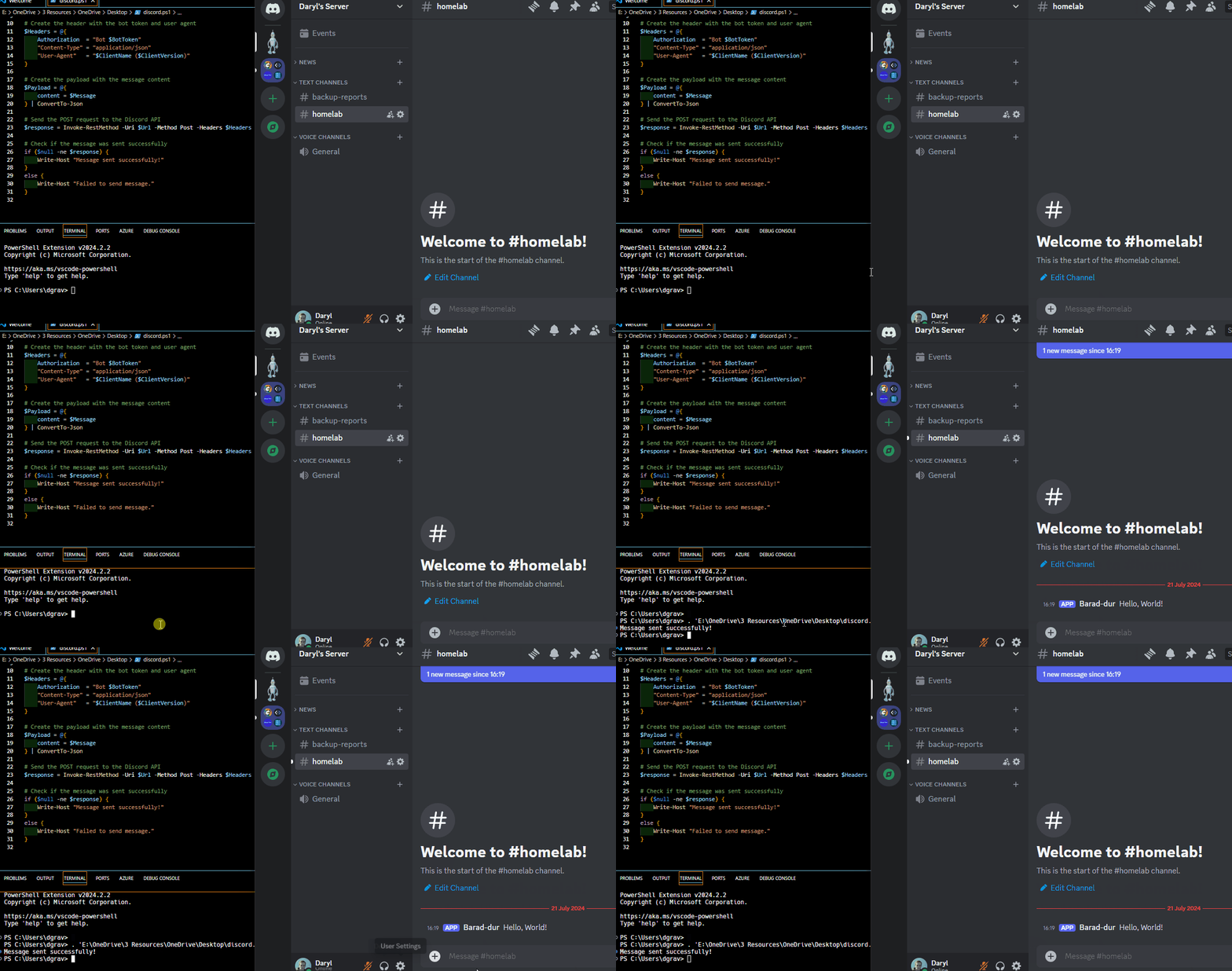 POST Request to Discord API
Prerequisites
- Windows PowerShell 5.1 or PowerShell 7 and above
- A Discord Account
- Your own Discord Server or a friend who is willing to add your bot to theirs (but it is free to create a server)
Creating a Bot
- First navigate to the Discord Developer Portal and create a new application.
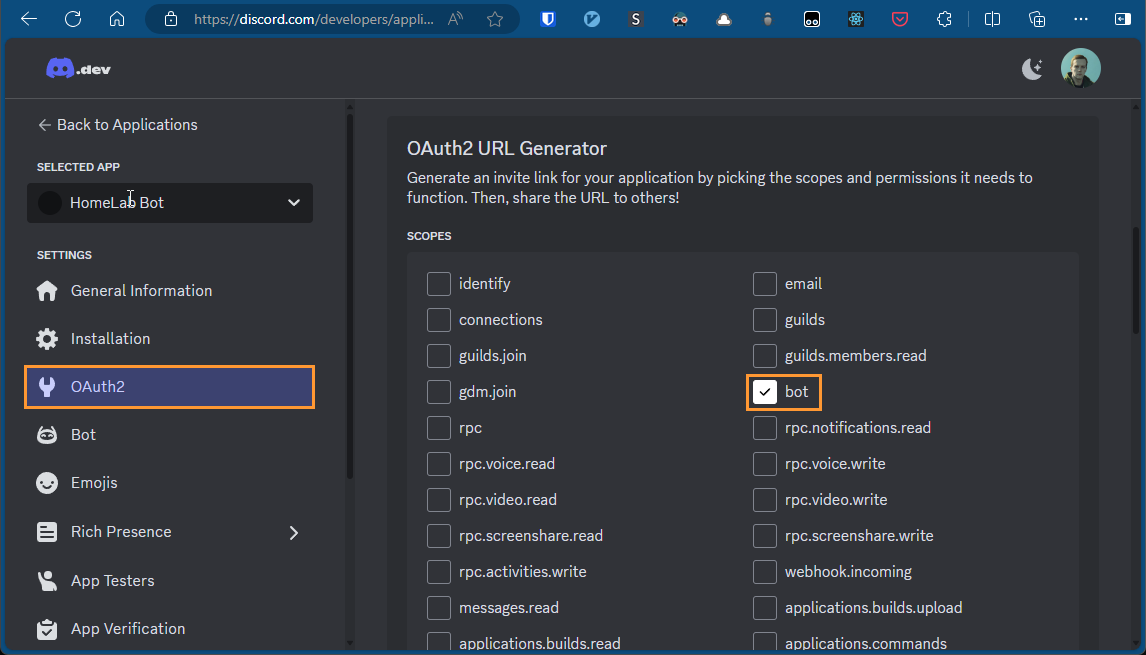
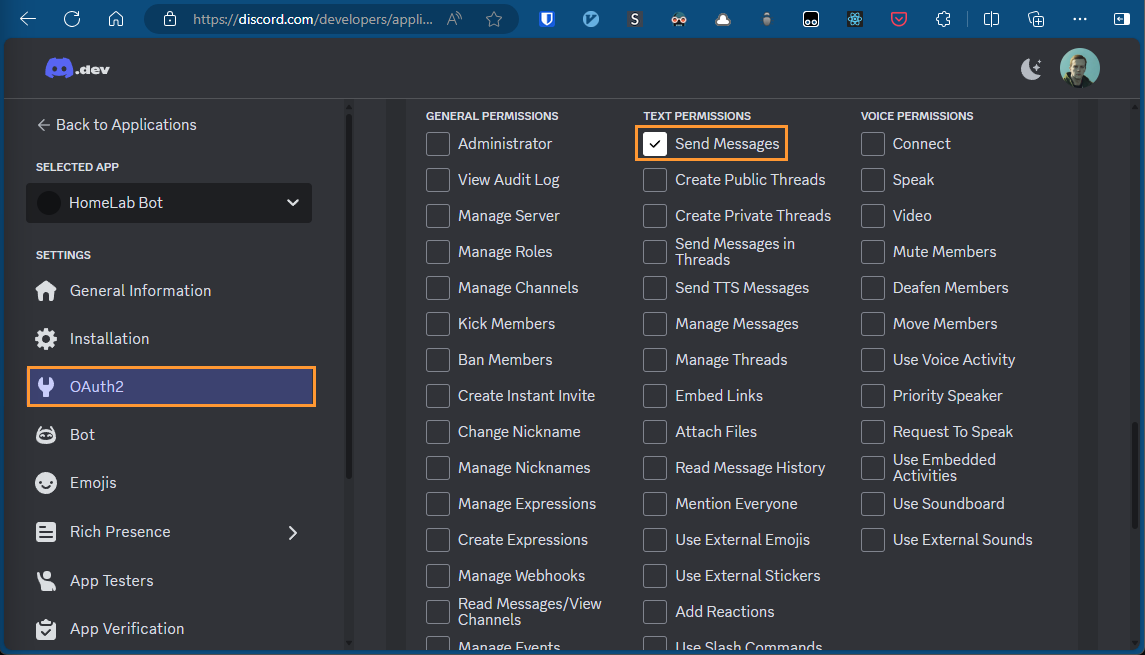
- Inside of the App, navigate to the OAuth2 tab and create an OAuth2 URL with the Scope as bot and the Bot Permissions as Send Messages
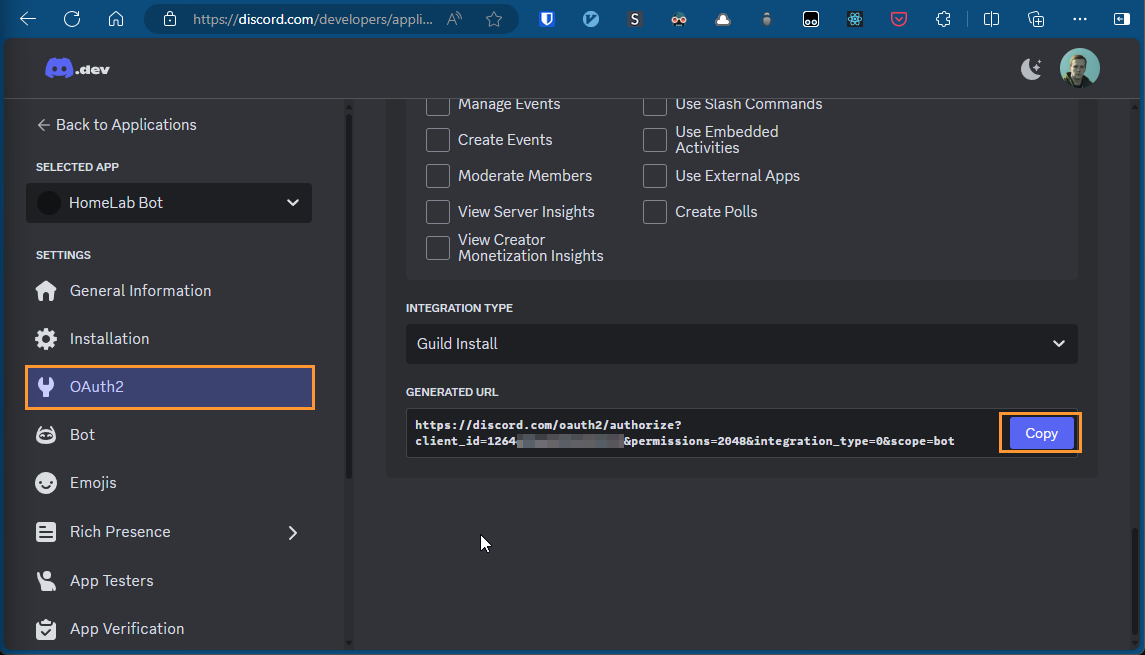
- Copy the URL and paste it into your browser. It should prompt you to add the Bot to a server of your choice, follow these steps.
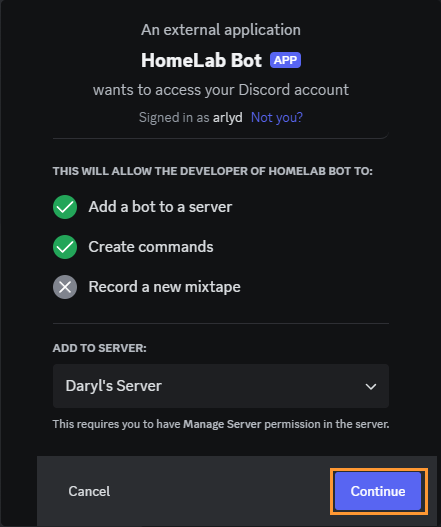
- You should now see the Bot as a user in your channel.
Getting the Variables
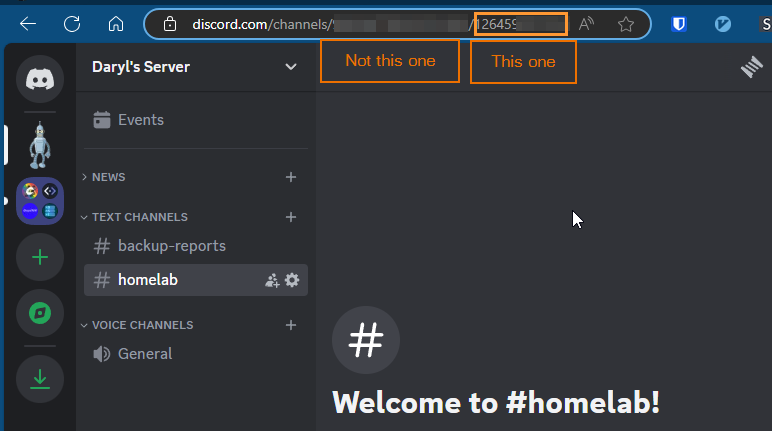
- First make a copy of the Channel ID you wish to send your message to. This is found easily by going to the web version of Discord and parsing the URL.
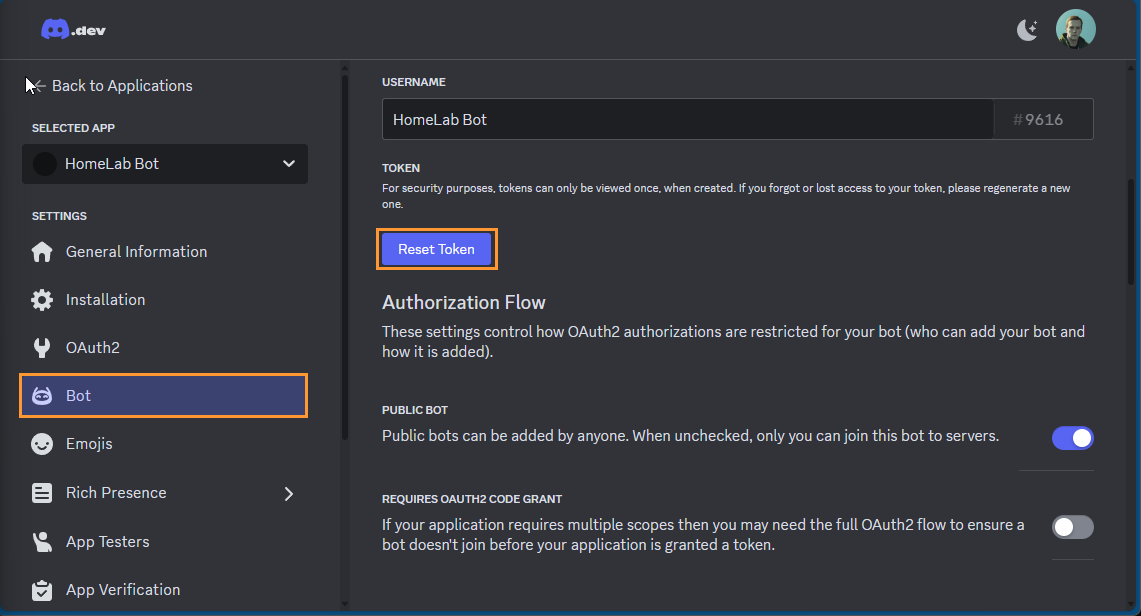
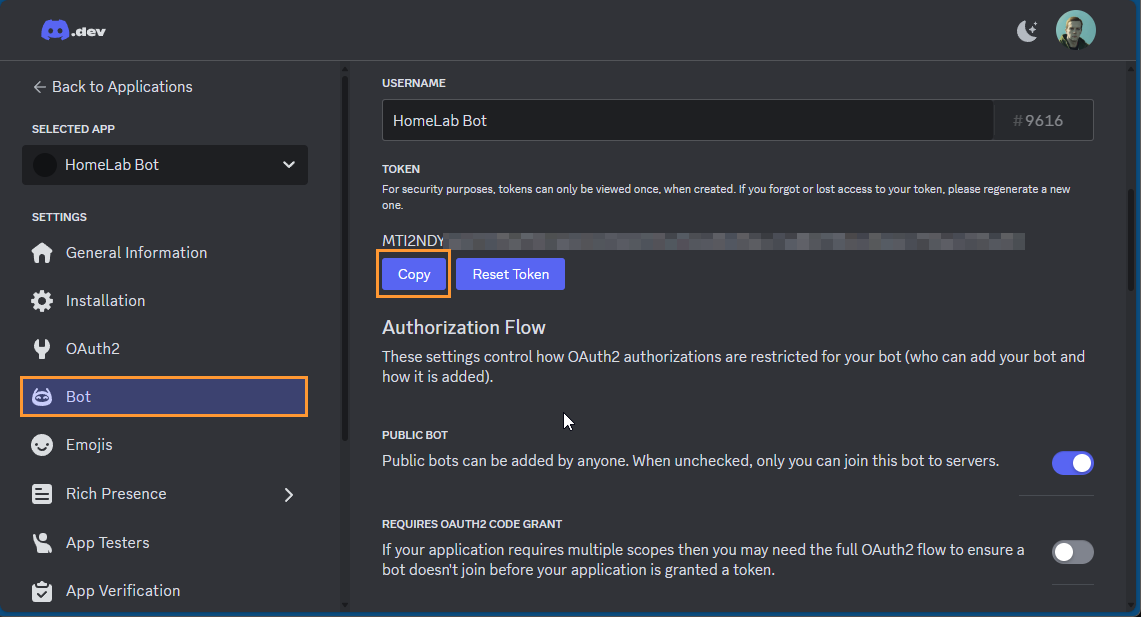
- In the Developer Portal, navigate to Bot, select Reset Token and follow the instructions to retrieve the token. Make a note of this too.
The Code
- Use this script as your template. Note you need to replace “PLACEHOLDER” with your details:
1
2
3
4
5
6
7
8
9
10
11
12
13
14
15
16
17
18
19
20
21
22
23
24
25
26
27
28
29
30
31
32
33
# Define the necessary variables
$ChannelId = "PLACEHOLDER" # Place your Channel Id here
$BotToken = "PLACEHOLDER" # Place your Bot Token here
$ClientName = "PLACEHOLDER" # The Name of your bot
$ClientVersion = "1.0"
$Message = "Hello, World!" # Your message here

# Define the URL for the API endpoint
$Url = "https://discord.com/api/v10/channels/$ChannelId/messages"

# Create the header with the bot token and user agent
$Headers = @{
    Authorization  = "Bot $BotToken"
    "Content-Type" = "application/json"
    "User-Agent"   = "$ClientName ($ClientVersion)"
}

# Create the payload with the message content
$Payload = @{
    content = $Message
} | ConvertTo-Json

# Send the POST request to the Discord API
$response = Invoke-RestMethod -Uri $Url -Method Post -Headers $Headers -Body $Payload

# Check if the message was sent successfully
if ($null -ne $response) {
    Write-Host "Message sent successfully!"
}
else {
    Write-Host "Failed to send message."
}
How does this work?
- In lines 1 - 10 we are configuring all the variables. That is, the things which might change.
- In lines 12 - 17 we are creating the HTTP Headers, this includes adding the Bot’s token for authorisation and confirming the payload we are about to send will be JSON.
- In lines 19 - 22 we are creating a hashtable of the message we wish to send and then converting it to JSON
- In line 24 we send the request.
- The remaining lines will print back to your terminal if your message was successfully accepted by Discord or if it was rejected.
Use Cases
This can be used for a variety of scheduled task or cron jobs. As an example, I have an Active Directory domain which I use to test concepts and this runs with a 180 day trial license. Since it is used infrequently I sometimes forget to re-arm the license in time so I am using the below to remind me when I have less than a month remaining on the trial:
1
2
3
4
5
6
7
8
9
10
11
12
13
14
15
16
17
18
19
20
21
22
23
24
25
26
# Get the days remaining of the license
$LicenseExpiryInDays = [math]::Floor((Get-WmiObject -Query "SELECT * FROM SoftwareLicensingProduct WHERE ApplicationID='55c92734-d682-4d71-983e-d6ec3f16059f'").graceperiodremaining / 1440)

# Only send an email if less than 31 days remaining.
if($LicenseExpiryInDays -lt 31)
{
    $ChannelId = "PLACEHOLDER"
    $BotToken = "PLACEHOLDER"
    $ClientName = "PLACEHOLDER"
    $ClientVersion = "1.0"
    $Url = "https://discord.com/api/v10/channels/$ChannelId/messages"

    $Message = "$($Env:ComputerName) has $LicenseExpiryInDays days remaining on its Windows trial license. You need to re-arm or potentially rebuild."

    $Headers = @{
        Authorization  = "Bot $BotToken"
        "Content-Type" = "application/json"
        "User-Agent"   = "$ClientName ($ClientVersion)"
    }

    $Payload = @{
        content = $Message
    } | ConvertTo-Json

    Invoke-RestMethod -Uri $Url -Method Post -Headers $Headers -Body $Payload
}
Storing Credentials
The above is to show what is possible but ideally you should not be storing secrets in your code as plain text.
A more secure way to handle secrets on a Windows machine is to change the token to a secure string and then export it as an XML file. When a credential or secure string is saved using Export-Clixml Windows will use Windows Data Protection API to encrypt the data so it can only be read by the user who exported it, providing they are on the same computer which generated it. No one else can read it and it will not work if it’s moved to another machine.
This does mean if your script is going to run your scheduled task as SYSTEM, you also need to create the XML file as SYSTEM first.
1
2
$apiToken = "your_api_token_here"
$apiToken | ConvertTo-SecureString -AsPlainText -Force | Export-Clixml -Path "path\to\your\securetoken.xml"
In the code you can then run the following to collect the token:
1
2
$secureToken = Import-Clixml -Path "path\to\your\securetoken.xml"
$apiToken = [System.Runtime.InteropServices.Marshal]::PtrToStringAuto([System.Runtime.InteropServices.Marshal]::SecureStringToBSTR($secureToken))