Dev Containers in VsCode
There's no need to install dependancies locally when VsCode can connect to Docker Containers!
Overview
Picture this all-to-familiar scenario: You join a new company as a developer and spend your first week chasing IT to get all your dependancies installed before you can even start writing code. Hopefully you’re already using Docker containers for your dev databases… But did you know about Dev Containers?
Dev Containers are a feature in VsCode that streamline your development environment. If you choose to run a Dev Container, VsCode will prompt you to choose a Docker Image. It will then download this image, run it as a container and mount your repository folder inside it. You still write your code in VsCode as usual - but now with access to all the tools inside the container.
In other words, you no longer need to install Python, Node.JS or Go locally - Just run your code directly from a container.
Advantages
- You no longer need to submit tickets with IT to install that specific version of Python/Node and wait a week - Just pull a container with the tools you require.
- No bloat is on your machine - Everything is in a Container.
- Your Dev Container configuration is all stored in the
.devcontainerfolder VsCode creates in your repository - Commit this to Git and everyone can instantly recreate your dev environment and work on the code with the same toolset. - You get the same VsCode experience - The VsCode Terminal points to the Container’s Terminal, the Debugger will use the programs inside container and your repository is mounted so any changes made from your local machine can be seen by the container and vice versa. Deleting the container doesn’t delete your code since the files live on your local machine, not in the container itself.
Disadvantages
- You must have Docker installed
- Does not support GUI applications - If you’re trying to create WPF or Winforms this probably isn’t suitable. This is great for Web Development and writing command line tools.
- Takes a few minutes to set up…? I’m struggling to think of disadvantages.
Getting Started
Creating the Dev Container Config File
In VsCode:
- Open/Clone the repository you wish to work on
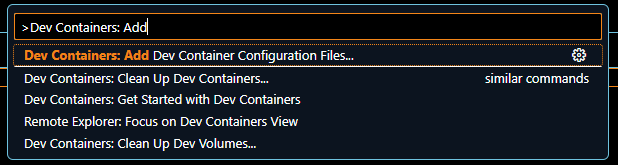
- In the Command Palette (Ctrl+Shift+P) search and run
Dev Containers: Add Dev Container Configuration Files...
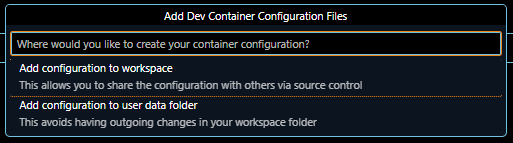
- When prompted, select whether you want your Configuration file to be saved to the Workspace or a User specific folder (If sharing with others, choose workspace so it stores it in the repository)
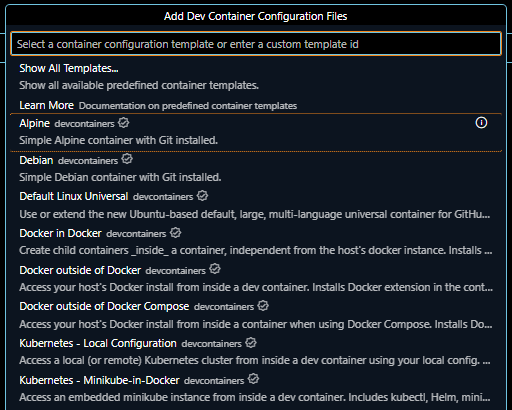
- Select the base image you wish to use (note the “Show All Templates” option, there are a lot!)
- Select the OS you wish the base image to use (latest is usually fine):
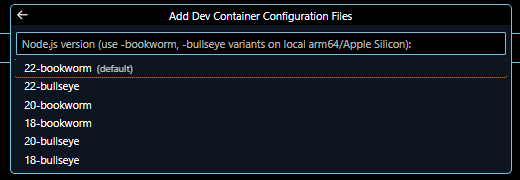
- Select any additional applications you wish to be added to the image (there are hundreds!):
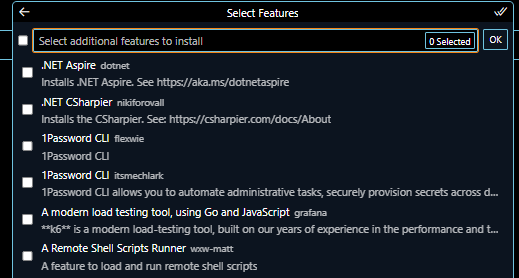
The container config file should now be created.
Running the Dev Container
- Once the
.devcontainer\devcontainer.jsonfile has been created, open the Command Palette again and runDev Containers: Reopen in Containerto use it.
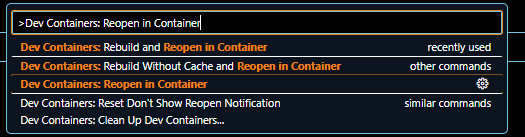
This can take a few minutes whilst it pulls down the Docker image for the first time.
Once loaded, the only real indicator that you’re in a Container now is at the bottom left corner:
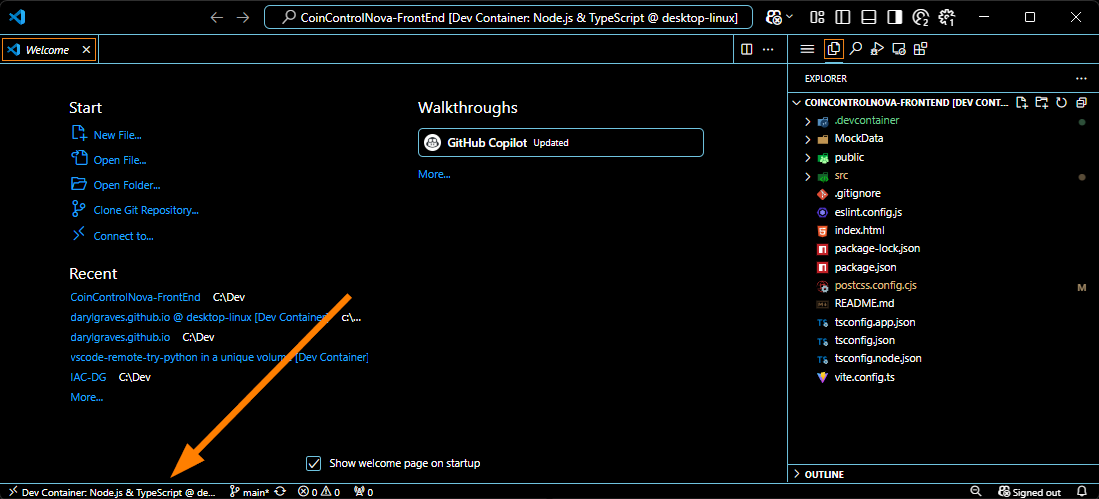
You can click here to close / reload the container after making changes.
Making Further Changes
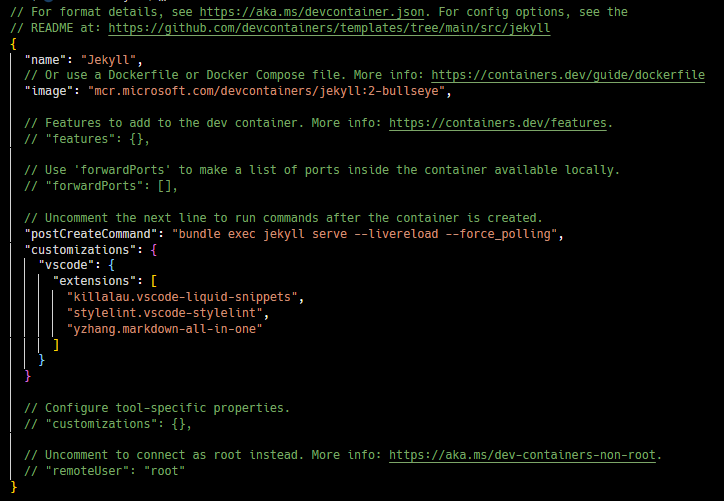
The .devcontainer\devcontainer.json file is just json so can be updated by hand. Below is the configuration file I use when I work on this blog:
 –>
–>
Note you can even have a postCreateCommand which will run as soon as the container has started. Good for running pip install -r requirements.txt or in my situation, I use it to immediately start a live-reload web server.
You can also add VsCode extensions to the container specifically so you can make sure everyone is using the same extensions:

Summary
I discovered Dev Containers when I was looking at ways to improve my workflow for this blog. This is an open source blog template, built with Jekyll, and relies on a Github Action to convert markdown files into HTML.
The problem I had is I couldn’t preview my code - I had to push to main to trigger the Github Action and this would deploy the changes to prod. Not ideal at all… Especially since I kept uploading broken image links! I needed a proper dev environment.
That’s when I stumbled across Dev Containers. For this blog, Jekyll is just a means to an end. I’m afraid I don’t have much interest in learning it so being able to spin up a Dev Container with Jekyll preinstalled and get ChatGPT to send me a command to run the dev server with hot reload has been incredible. I can now test everything locally, from any machine with Docker, and fix all bugs before pushing a post to main.
And since I have a habit of factory-resetting my computer every ~6 months because I always feel like I’ve made it dirty with junk, Dev Containers means I never have to remember how this blog works again, I just start the container!
10/10 would recommend.
Would you like to know more?
YouTube Videos
- Beginner’s Guide to VS Code Dev Containers - James Montemagno (5 min)
- Working With Dev Containers - Chrysi Ayers (40 min)
Documentation